Setup guide
Fire TV setup. Ready in about 10 minutes.
Install a player with the Downloader app, then add your OrigineTV access.
- Amazon Fire TV or Fire TV StickYou’ll need
- Your OrigineTV access detailsYou’ll need
- A stable internet connectionYou’ll need
- Easy3 steps · ~10 min
Allow app installs
- 1
Open Settings, then My Fire TV (or Device Options).
- 2
Open Developer Options. Not there? Go to About and select your device name 7 times.
- 3
Turn on Apps from Unknown Sources for Downloader.
Good to know: Menu names vary slightly between Fire TV models. Only allow installs from apps you trust.
Install Downloader
- 1
From the home screen, open Find, then Search.
- 2
Search for Downloader and install the orange Downloader app.
- 3
Open Downloader.
Install and connect your player
Pick one player — both work well with OrigineTV.
- 1
In Downloader, enter the code 923441, then download and install IBO Player.
- 2
Open IBO Player and note the MAC address and device key shown on screen.
- 3
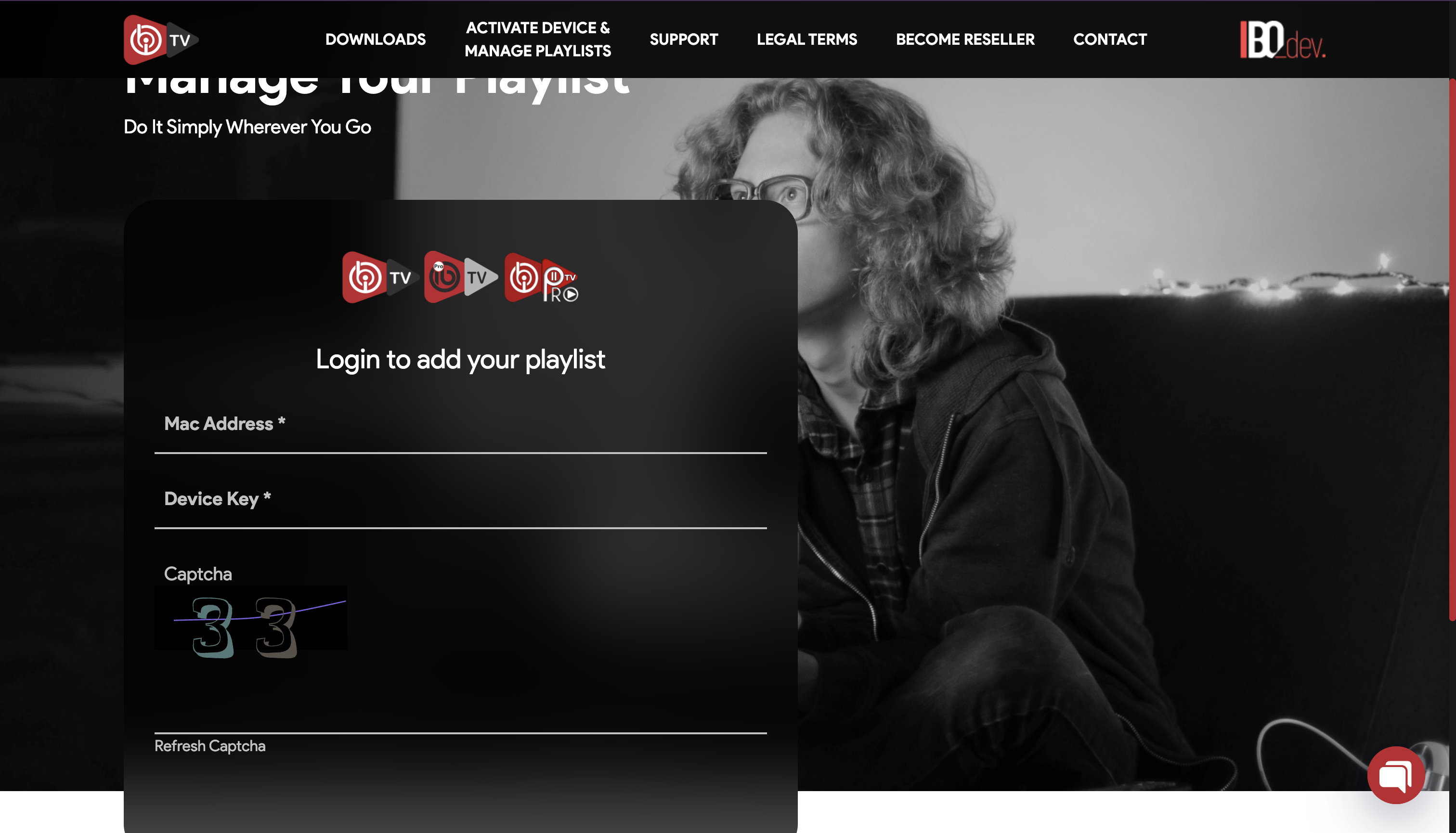
On a phone or computer, open the IBO device portal and sign in with the MAC address and device key.
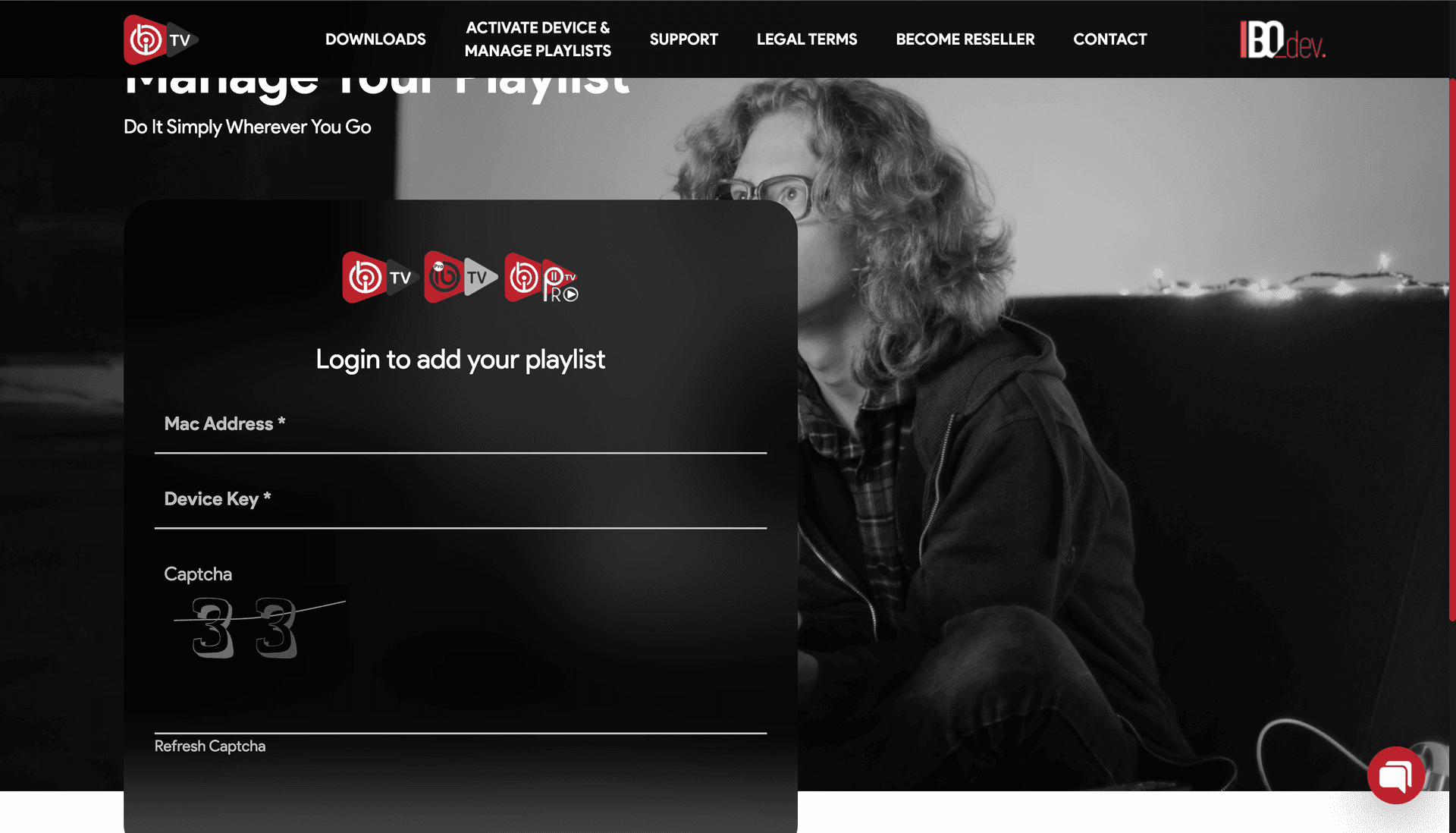
IBO device portal — sign in with the MAC address and device key - 4
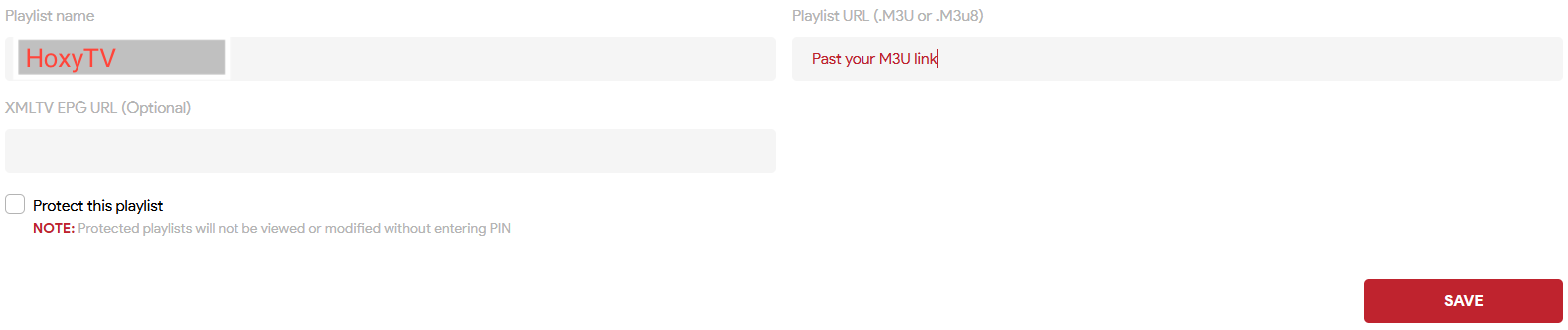
Select Add playlist, name it “OrigineTV” and enter your M3U link.
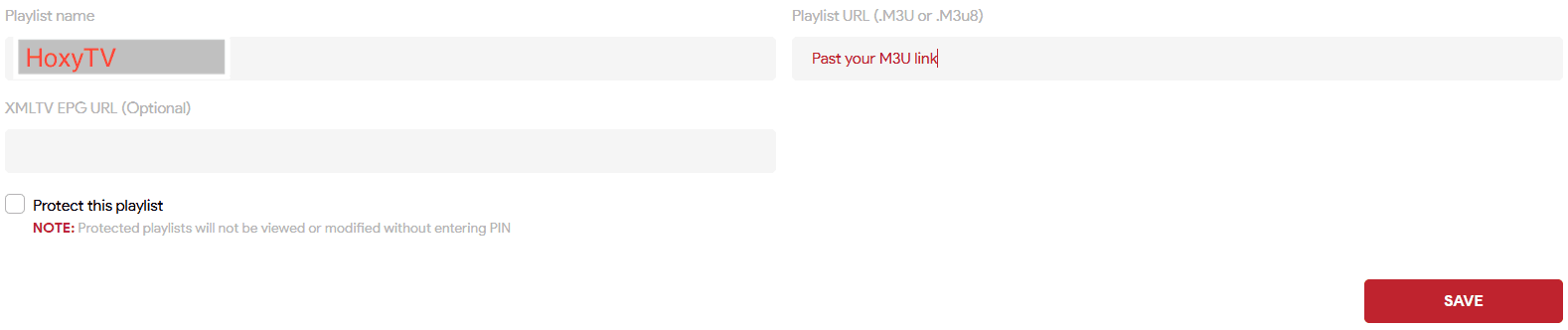
IBO device portal — add your playlist - 5
Save, restart IBO Player and wait for your channels to load.
- 1
In Downloader, enter the code 395800, then download and install Hot Player.
- 2
Open Hot Player and note the MAC address shown on screen.
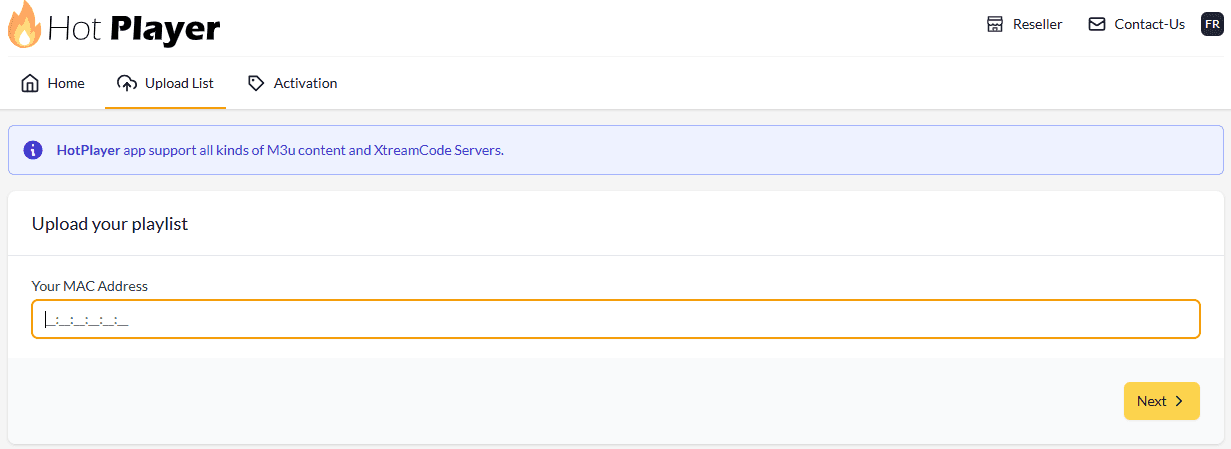
Hot Player — the MAC address on screen - 3
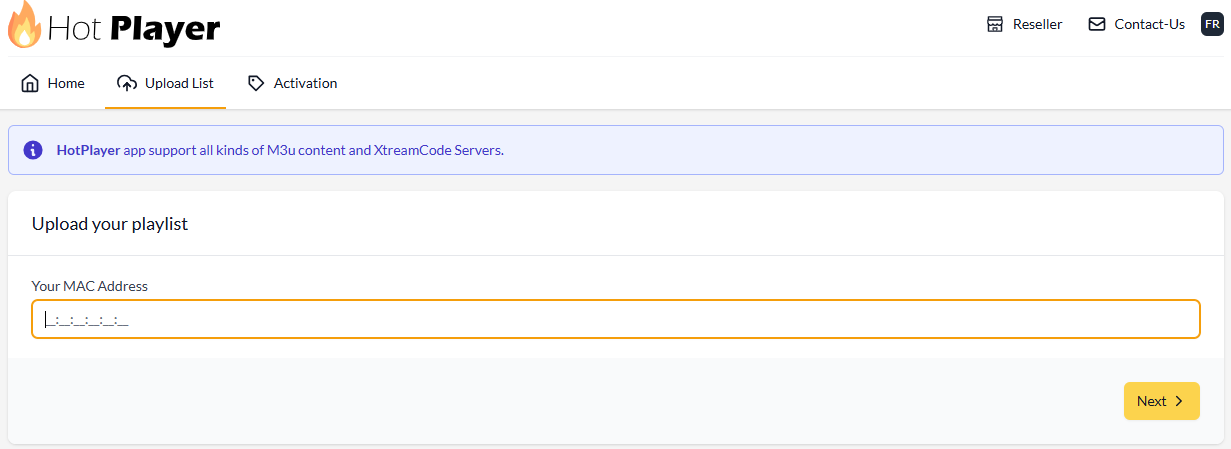
On a phone or computer, open the Hot Player upload page and enter the MAC address.
- 4
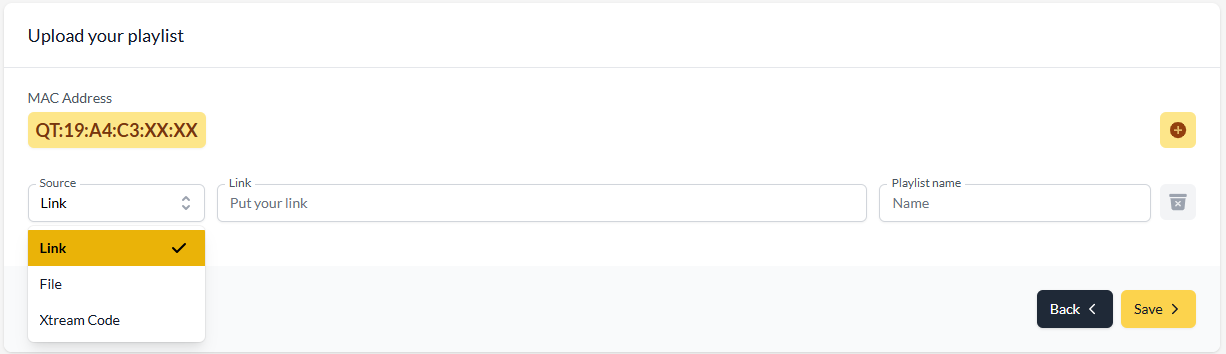
Choose M3U or Xtream Codes, enter your OrigineTV details and name the playlist “OrigineTV”.
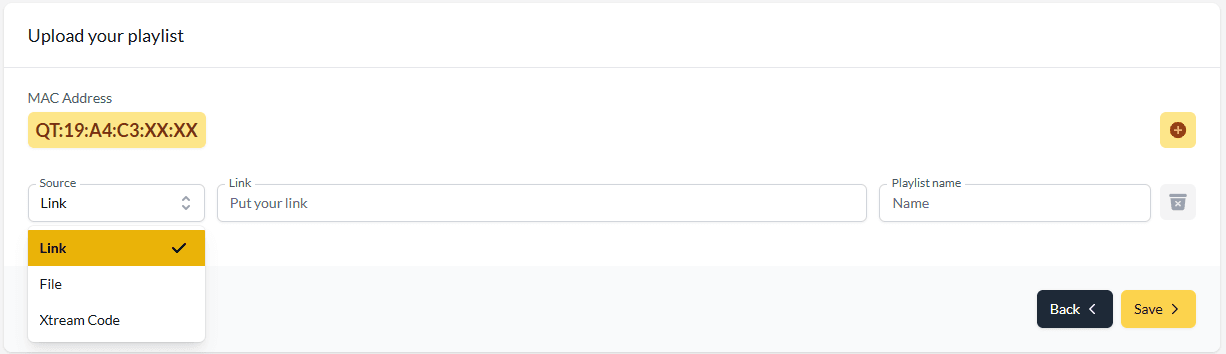
Hot Player upload page — add your playlist - 5
Save, restart Hot Player and wait for your channels to load.
Your Fire TV is ready.
Open your player and enjoy OrigineTV. Channels missing or the picture not right? We’ll sort it out with you.
Other devices
Setting up another screen?
Support · 7 days a week
Still not connected?
Send us your device and a photo of the screen. A real person replies — usually within minutes — and stays with you until it works.